How to connect your wallet
To use SpookySwap, you need a MetaMask wallet (or any other browser wallet) connected to a supported blockchain. For information on MetaMask, visit their website. MetaMask by default only supports the Ethereum network. However, when you connect MetaMask to SpookySwap, it will automatically configure MetaMask to work with the selected chain.
You can also connect your wallet with WalletConnect or Coinbase Wallet.
By connecting a wallet, you agree to SpookySwap’s Terms of Service and consent to its Privacy Policy.
How do I connect your wallet to SpookySwap?
- Go to SpookySwap and press Connect in the upper right corner.
- Choose how you want to connect your wallet. If you are using MetaMask or any other browser wallet, choose MetaMask. If you are not using a browser wallet, connect via WalletConnect or Coinbase Wallet (NOTE: If you already have MetaMask installed, it will just say “MetaMask”).
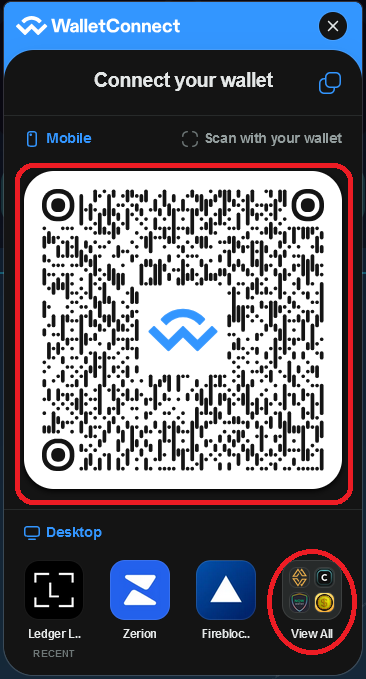
If you are using WalletConnect, scan the QR code with your phone or choose your wallet in the wallet menu below.
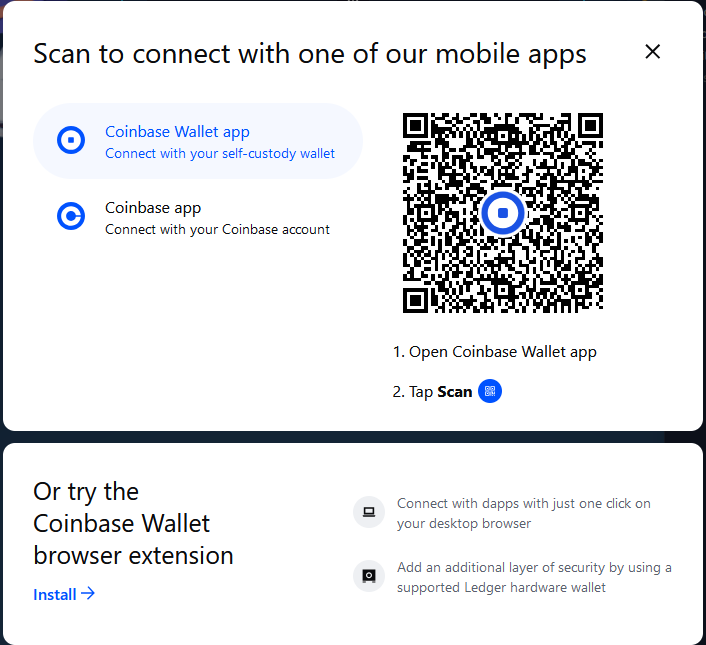
If you are using Coinbase Wallet, scan the QR code with your Coinbase app or use the Coinbase Wallet browser extension.
- Choose the account(s) you want to use on SpookySwap and click Next, and then click Confirm.
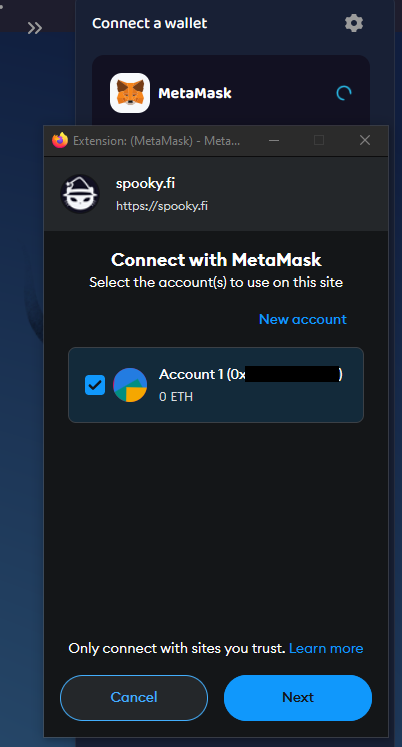
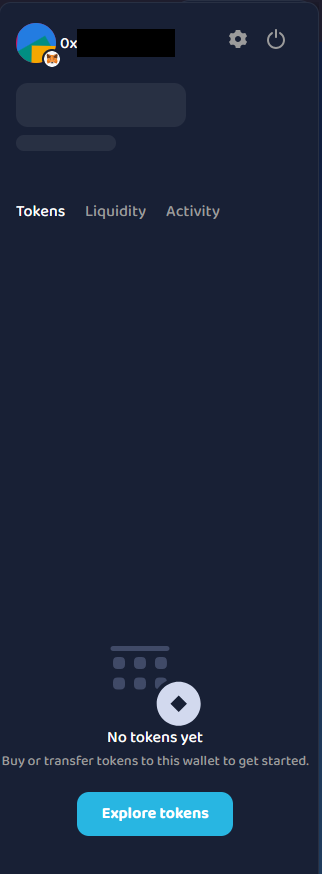
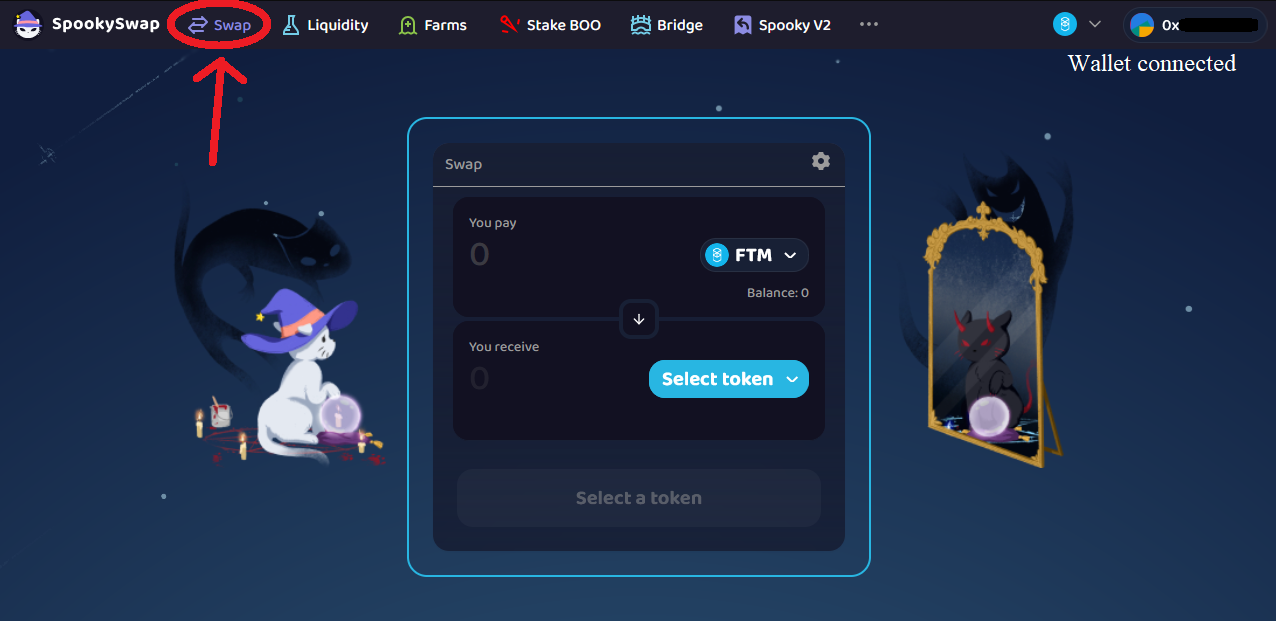
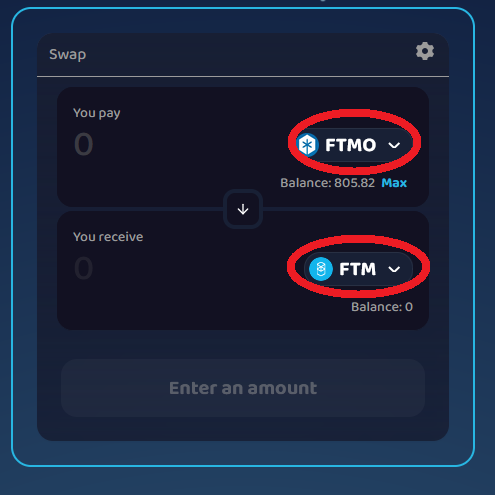
- Your wallet should be connected to SpookySwap, and you should see this window open.